
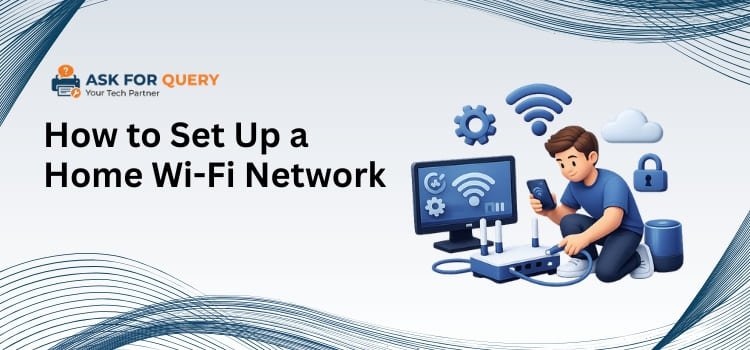
As technology advances at a rapid pace, many routine actions now need some amount of technical setup. While these improvements make life easier, they can also cause hesitation for people who are not familiar with technical processes. Setting up a home Wi-Fi network for the first time can appear hard or unsafe, especially if it involves unfamiliar equipment, settings, and technical words. As a result, many people are unclear where to begin or concerned that they will make a mistake during the procedure.
However, setting up a home Wi-Fi network does not have to be difficult. With the right guidance and a clear understanding of each step, the process can be completed smoothly without requiring advanced technical knowledge. This guide is intended to describe the setup in a straightforward and orderly manner, so that anyone may follow along with confidence. By carefully reading each section and following the directions step by step, you will be able to effectively set up your home Wi-Fi network and enjoy a stable internet connection with no stress.
What You Need Before Setting Up a Home Wi-Fi Network
Before you begin the process of setting up a home Wi-Fi network, ensure that you have all of the necessary equipment. Having the necessary equipment and information on hand makes the setup procedure go more smoothly and quickly. It also helps you prevent interruptions when configuring your network for the first time. The following are the essentials for properly configuring your home Wi-Fi network.
- Internet Service Provider (ISP) Connection: First, you’ll need an active internet connection from an ISP. This service connects your home network to the internet, allowing you to access online services.
- Ethernet cable: During the setup phase, the modem and router are connected via an Ethernet connection. It aids in maintaining a stable connection when setting your network.
- Computer or smartphone: You’ll need a computer, laptop, or smartphone to view the router’s settings. This gadget lets you set the Wi-Fi name, password, and other network settings.
- Router Login Information: Most routers provide a default username and password, which are printed on the label or provided in the handbook. These details are necessary to access the router’s configuration page during the setup process.
Understanding the Router and Modem Very Essential for Wi-Fi Connection
Before setting up a home Wi-Fi network, it’s important to understand the roles of the two major devices involved. These devices work together to provide internet connectivity to your house and enable many devices to connect. You don’t need advanced technical knowledge to set them up, but understanding what each device does may make the process much easier and less complex.
- Modem
A modem is the device that connects your home to the internet via your ISP. Consider it the primary entry point for the internet. The modem takes the signal from your service provider via a cable or phone connection and translates it to a format that your home devices can understand. However, the modem typically connects to only one device directly. That is why it is often used in conjunction with a router. Simply said, the modem’s duty is to transmit the internet connection to your home so that other devices can access it via the router.
- Router
A router is the device that establishes the Wi-Fi network in your home. When the modem gets an internet signal, the router distributes it to many devices, including smartphones, laptops, tablets, and smart TVs. The router enables various devices to connect wirelessly, allowing you to access the internet from multiple rooms without the need for cords. It also allows you to specify a network name and password so that only authorized users can use your Wi-Fi. In simple terms, the modem connects your home to the internet, and the router shares that connection with all of your devices, forming the wireless network you use every day.
Step-by-Step Guide to Set Up a Home Wi-Fi Network for the First Time
Setting up a home Wi-Fi network may appear tough at first, but if you take it step by step, it becomes pretty straightforward. The goal is to connect each device correctly and set up the basic parameters. The guide below is simple and easy to follow, and it will help you set up your home Wi-Fi network without any confusion.
Step 1: Connect the Modem to the Internet Source
Begin by connecting your modem to the internet connection provided by your Internet Service Provider. Depending on your provider, this could be a cable, fiber, or phone line. After connecting, plug the modem into a power outlet and turn it on. Wait a few minutes until the indicator lights become stable, indicating that the modem has properly received the internet signal.
Step 2: Connect the Router to the Modem
Now, use an Ethernet cable to link one end to the modem and the other to the router’s internet port. This connection allows the router to accept internet traffic from the modem. After connecting the cable, connect the router to a power source and turn it on. Wait for the router lights to steady before proceeding to the next step.
Step 3: Connect the Device to the Router
Connect your PC, laptop, or smartphone to the router. You can connect using the default Wi-Fi network name written on the router label or an Ethernet cable. Once connected, your device will be able to visit the router’s configuration page, which will allow you to configure the network.
Step 4: Open the Router Settings Page
Open a web browser on your device and input the router’s setup address, which is typically printed on the router label or manual. After entering the URL, you will be directed to a login page. To access the router’s settings panel, enter the default username and password provided by the manufacturer.
Step 5: Create a Wi-Fi Network Name and Password
Once within the router’s settings, you can alter the Wi-Fi network name (SSID) and set a strong password. Choose a memorable name and a secure password. This step ensures that only authorized users can access your Wi-Fi network.
Step 6: Save the Settings and Restart the Router
After altering the network name and password, save the changes in the router panel. The router may restart automatically to implement the modifications. When it restarts, your new Wi-Fi network will display with the name you choose.
Step 7: Connect Your Devices to the New Wi-Fi Network
At last, go to the Wi-Fi settings on your smartphone, laptop, or other device and pick the newly created network. Enter the password you created before, and the device will connect to the internet. Repeat the process for each device you want to join to your home network.
Security Tips for Your Home Wi-Fi Network
Once you’ve set up your home Wi-Fi network, the following step should be to secure it. A secure network helps to prevent unauthorized access and keeps your sensitive information private. Simple security precautions can significantly lower the likelihood that outsiders will use your internet or attempt to access your linked gadgets. To keep your network safe, follow the suggestions below.
1. Make a strong Wi-Fi password
Always create a strong password for your Wi-Fi network. Use a combination of letters, numbers, and symbols to make it harder for others to guess.
2. Change the default router login details
Routers normally have a default username and password. Changing these credentials helps prevent unwanted access to your router’s settings.
3. Keep the router firmware updated
Router updates frequently offer significant security improvements. Regular firmware updates help safeguard your network from potential security threats.
4. Place the router in a central location
Placing the router in the center of your home boosts signal strength across the home. It also lowers the possibility of the signal spreading too far from your home.
Conclusion!
Setting up a home Wi-Fi network for the first time may appear difficult, but taking the proper steps can make the process much easier. During the setup process, you may encounter issues such as the network not showing, wrong router login information, or unreliable connections. These issues are rather common and may typically be resolved by checking cable connections, resetting the modem and router, or verifying the Wi-Fi name and password. Taking the time to properly review each step reduces errors and guarantees a pleasant setup experience. When everything is properly installed, you will have a dependable and secure internet connection throughout your home.
