
Regardless of how much technology advances, email remains the most trusted and commonly used platform for professional communication. Setting up an email account may appear simple, but for beginners, the procedure can be complex. There are numerous critical stages to getting it correct the first time, including inputting the correct server settings and securely safeguarding your account.
This guide is intended to lead you through the entire email account setup procedure step by step in an easy-to-follow format. Even if you’re a complete newbie, by carefully following these instructions, you’ll be able to build a completely working, secure, and well-organized email account with no bugs.
Benefits of Having an Email Account for Professionals and Businesses
Email is more than just sending messages—it’s a professional communication platform that helps individuals and businesses stay organized, secure, and efficient. Understanding the benefits of email accounts demonstrates why good setup is crucial. From securing sensitive information to enhancing workflow, a well-configured email account offers numerous benefits that make professional life easier and more productive.
- Professional Communication: Emails are a more formal approach to connect with coworkers, clients, and partners, making your messages appear genuine and organized.
- Record-Keeping: Every email is automatically archived, allowing you to keep track of conversations, decisions, invoices, and essential documents for future reference.
- Easy Collaboration: Email makes it simple and efficient to share files, papers, and updates with teams or clients, hence enhancing workflow.
- Security & Privacy: To protect sensitive information, emails should be properly configured with passwords, two-factor authentication, and encryption options.
- Business Efficiency: Emails enable organizations to send notices, invoices, newsletters, and updates more quickly than other communication channels, saving time and eliminating errors.
- Accessibility Anywhere: Modern email accounts can be accessed on computers, tablets, and smartphones, allowing you to stay connected no matter where you are.
Types of Email Accounts and Which One is Right for You
Not all email accounts are identical. Depending on your needs: personal, commercial, or professional communication. In case you wish to understand the different sorts of email accounts and how they work. Here is a simple breakdown:
- Webmail Accounts: These are the most popular and beginner-friendly. Gmail, Yahoo Mail, and outlook.com allow you to view your email from a web browser without the need to install any software. They’re simple to start up, free, and available from any device.
- POP3 Accounts: POP3 (Post Office Protocol) downloads emails from the server to your device. Emails are usually erased from the server after they have been downloaded. This is beneficial for offline access but less versatile for accessing the same emails from numerous devices.
- IMAP Accounts: IMAP (Internet Message Access Protocol) stores your emails on the server and syncs them to all of your devices. When you check your email on your phone, laptop, or tablet, everything remains current. This is perfect for both novices and experts who require consistent access.
- Exchange Accounts: Businesses primarily use Microsoft Exchange accounts, which offer advanced features like calendar sync, shared contacts, and task management. These are ideal for teams that want communication tools coupled with email.
Essential tip for beginners: If you are just getting started, a webmail or IMAP account is usually the best option. It’s simple to set up, secure, and works flawlessly across several devices. Business customers may choose Exchange accounts due to the additional features.
Pre-Configuration Checklist for Email Setup
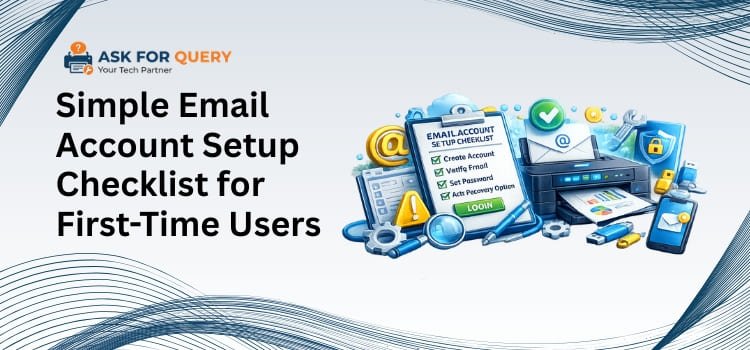
Before you begin setting up your email account, a little planning can save you a lot of time and trouble. Even if you’re new to email, having the necessary information and tools on hand will make the process go more smoothly. Before you begin, you should check the following:
- Email address and password: Have your new email address and a strong password handy. If you have a business account, validate the proper format with your company.
- Server details (Incoming and Outgoing): For IMAP, POP3, and Exchange accounts, you’ll need the incoming (IMAP/POP3) and outgoing (SMTP) server addresses, as well as the appropriate ports. This information is typically provided by your email provider or IT team.
- Device readiness: Decide if you want to use email on a computer, a smartphone, or a tablet. To avoid issues during setup, ensure that your device is connected to the internet and has been updated.
- Backup existing data: If you’re adding a new account to an existing one, make sure to back up any crucial emails and contacts first. This avoids unintentional data loss.
- Security measures: Plan for two-factor authentication (2FA) and consider establishing recovery options such as a phone number or alternate email address. This protects your account from unauthorized access.
A Step-by-Step Guide to Configuring Your Email Account for Beginners
Now that you’ve jotted down all of the necessary pre-configuration facts, such as your email address, password, server information, and devices, you may set up your email account. Whether for personal or professional purposes, following these steps ensures that your account functions properly across all devices. Let’s walk through the stages that are common to practically every email service or client.
- Begin by opening your preferred email application, webmail, or mobile app.
- Most services will have an “Add Account” or “Set Up New Account” option.
- Enter the complete email address you want to configure.
- Double-check for errors; it’s easy to overlook a letter or symbol.
- Enter the password for the email account.
- For business emails, use the official password issued by your organization.
- Now, select the account type (IMAP or POP3).
- If you want to sync your emails across numerous devices, use IMAP.
- If you wish to download your emails to a single device, select POP3.
- Send a test email to yourself or another coworker.
- Check that the message was delivered and that you are receiving emails correctly.
- If you choose, you can include a display name, signature, or profile image.
- Configure folder orgnization, notifications, and sync settings to your preferences.
- Review the information and then click the Save or Finish tab.
- Your email account is now available for usage on that device.
Essential Security and Privacy Measures for Your Email Account
Setting up your email is only the first step; keeping it secure is equally crucial. Beginners frequently forget basic security procedures, which can result in unwanted access or data loss. By taking a few simple steps, you can protect your account, maintain your privacy, and keep your business or personal communications safe at all times.
- Create a long, unique password that includes letters, numbers, and symbols. Avoid basic words and phrases.
- Add an extra layer of protection by demanding a second verification step, such as a phone code, each time you log in.
- Include a backup email address and phone number so that you may immediately retrieve your account if you forget your password or are locked out.
- Using public Wi-Fi may disclose your login information. Use a VPN or wait until you are on a reliable network.
- Most email providers allow you to view recent login activities. Check this to detect any unusual activity early on.
- To prevent interception of your emails, enable SSL/TLS encryption when sending and receiving them.
- Do not click on strange links or download attachments from unfamiliar emails, as they may include malware or phishing attempts.
- Always log out of computers and public devices to keep others from accessing your account.
Regular Checks to Ensure Smooth Email Performance
Setting up your email is only the beginning. To keep your account working efficiently and safely, you should undertake frequent checks and maintenance. These basic measures prevent errors, secure your data, and keep your email running smoothly for professional or personal use. Making these tests part of your routine can help you prevent common issues and keep your communications safe.
- Check recent login activity on a regular basis for any odd or unwanted access. This allows for the early detection of any security vulnerabilities.
- Change your password every few months. Strong, unique passwords guard against hacking attempts and keep your account secure.
- Delete any unneeded emails and tidy folders. This increases performance and makes it easier to locate crucial messages.
- Export or save relevant emails and attachments. A backup ensures that essential information is not lost due to an inadvertent deletion.
- Check that the two-factor authentication and recovery options are enabled. Change the permissions for related apps or devices as needed.
- To avoid problems and security issues, make sure your PCs, smartphones, and email apps have the most recent upgrades.
Conclusion!
Once you have properly configured your email account, maintaining it becomes straightforward. Follow the pre-configuration checklist, security precautions, and monthly maintenance guidelines to ensure a seamless, safe, and efficient email experience. Over time, you’ll also learn how to improve features, keep organized, and fully utilize your account’s capabilities, allowing you to communicate more quickly, professionally, and easily.
Read Other Blogs: https://askforquery.com/blog/
